IMAGE GENERATION & EDITING
Seedream 5.5Create with intention. Edit with control.
Make the image. Refine the details. Keep your visual direction. ByteDance’s Seedream 5.5 brings more deliberate editing, natural textures and native transparency to image creation.
Input & credit rules
Paid tasks are charged only after a completed result is available. The first two input-policy rejections return a free attempt; from the third, a rejected free request uses one free attempt. Technical failures do not count.
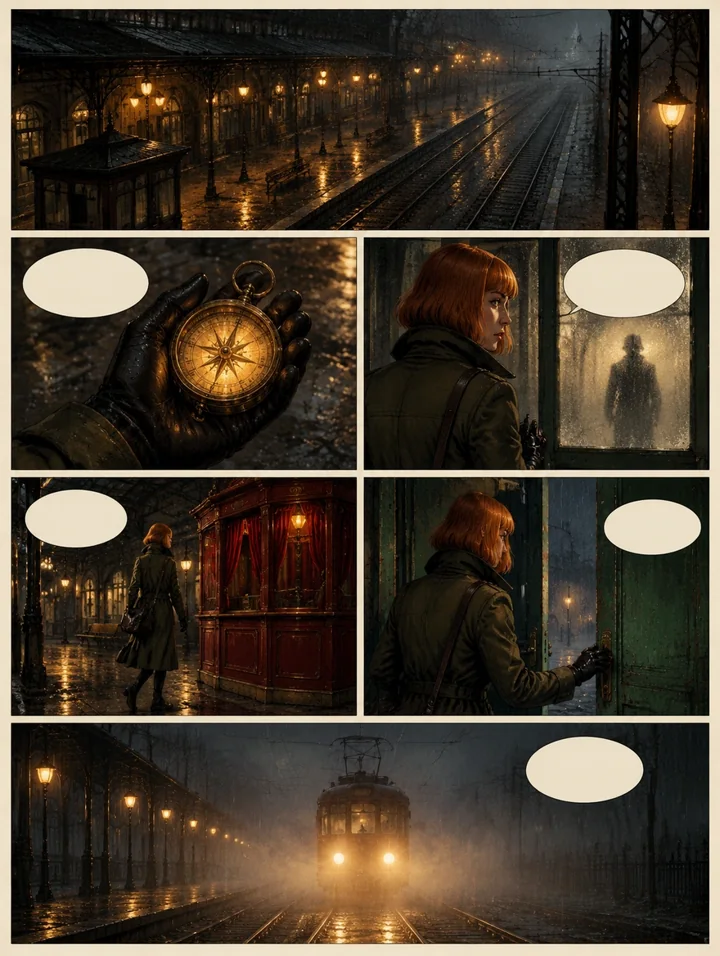
Create a six-panel noir comic page about a detective entering a rainy city cafe and discovering a mysterious red envelope. Use crisp black ink outlines, hand-painted muted colors, warm lamps against cool rain, dramatic shadows and textured cream paper. Keep the detective and cafe visually consistent across panels. Clear page gutters and an expressive close-up in the final panel. Leave speech bubbles blank so I can add my own dialogue. Original characters and story, no existing franchise, logos or signatures.
Illustrative template sample · Results vary by model
Your next idea, in motion.
Your generated video will appear here.Generating your video…
You can keep this page open or come back shortly.My Work
Your generated images, videos and audio.
Downloads: 7 days after completion · Recent history: 7 days
THE MODEL
What Is Seedream 5.5?
Seedream 5.5 is ByteDance’s image generation and editing model, released on November 9, 2026. It creates an image from a written brief or revises a reference image. The release centers on three changes: steadier successive edits, native transparent assets, and more natural imagery with clearer lettering. On Rendastic, use it for a new composition or a specific change to an image you already have.
CORE CAPABILITIES
Seedream 5.5 Key Features
Refine the part that matters.
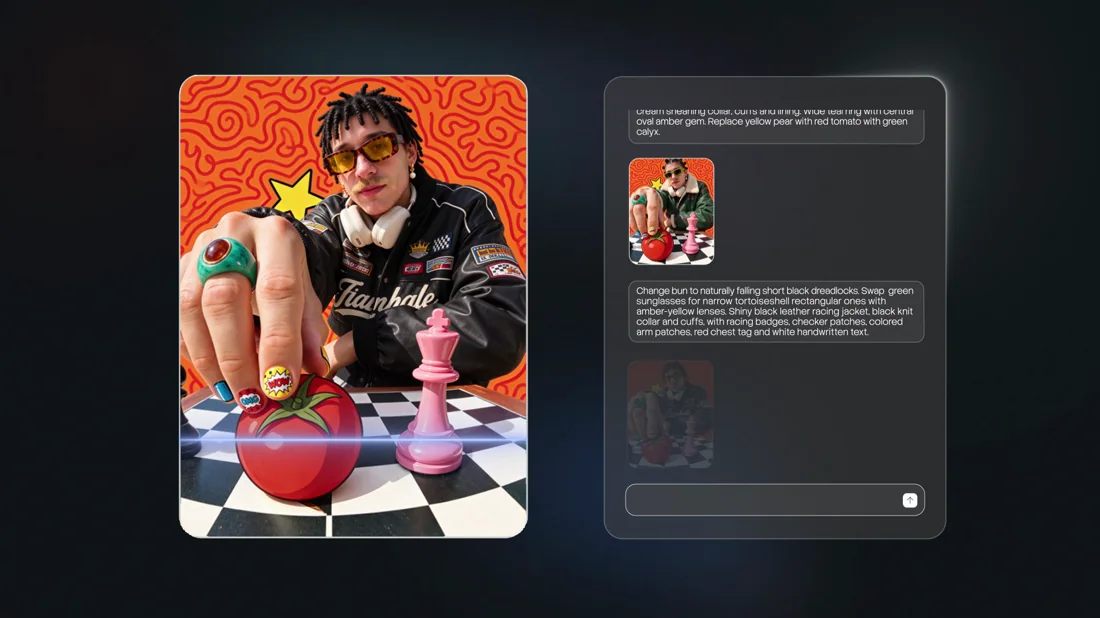
A product color, a prop or a line of copy can change the whole brief. Seedream 5.5 focuses on targeted editing while retaining the surrounding scene. Use a reference and name both the change and the details to preserve.
Textures that belong in the scene.
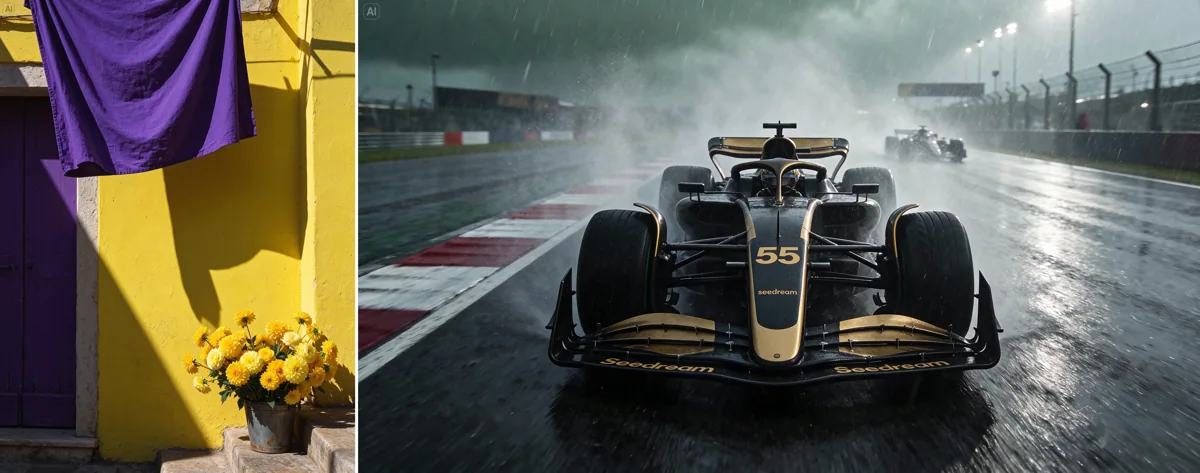
ByteDance highlights more natural lighting, materials and skin detail in this release. For product imagery, describe the surface and the light separately: brushed aluminum under broad window light asks for a different image from polished metal under a hard spotlight.
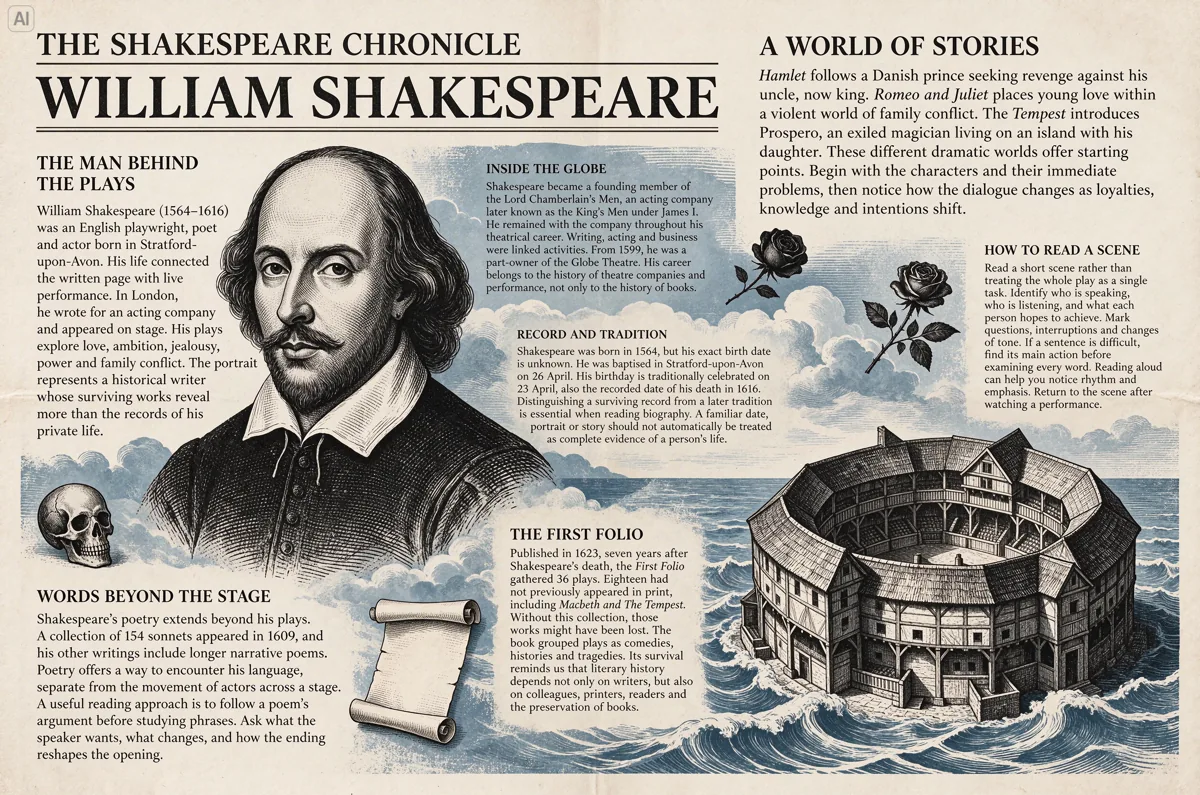
Lettering with a place in the layout.
The model improves small-text rendering. Build a poster around a short, quoted headline, its position and a clear reading order. Proofread names, dates and every visible word before publishing; generated text still needs review.
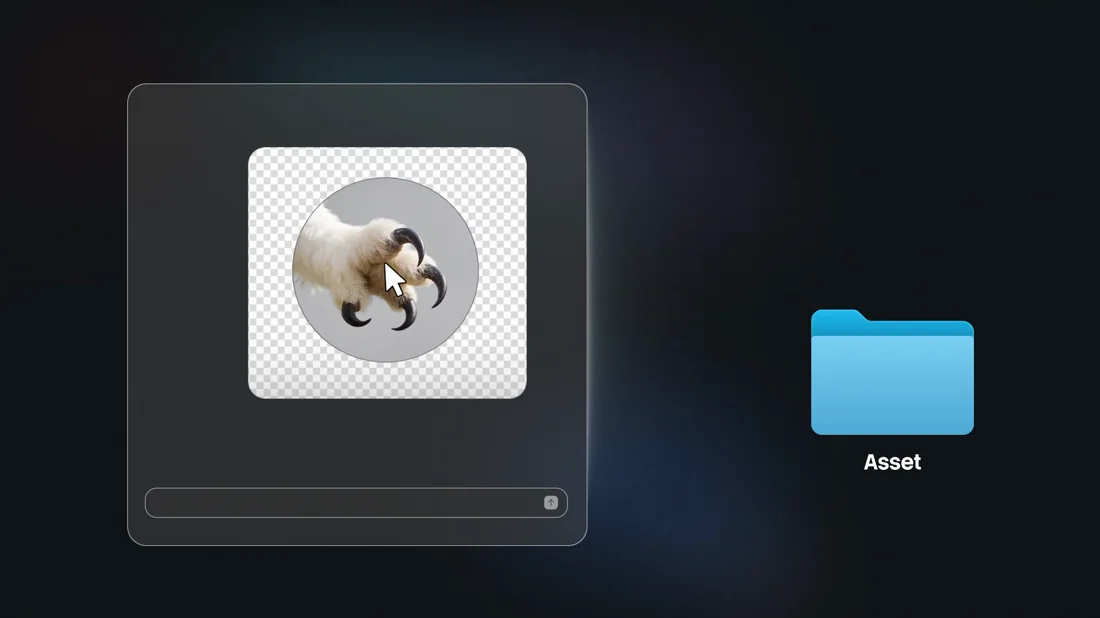
An asset, ready for another canvas.
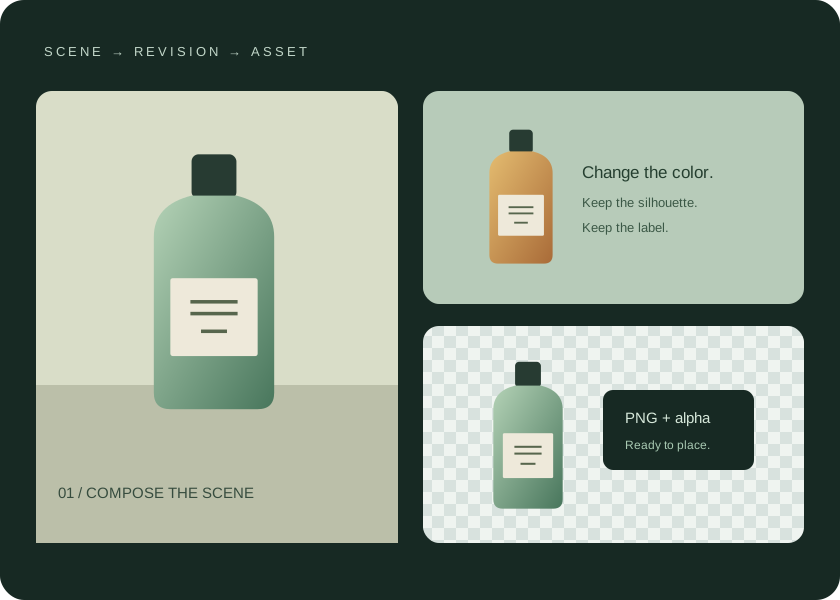
Native RGBA output makes transparency part of generation. Choose PNG and enable Transparent background for a cutout you can place in another design. Describe edges, fine details and any semi-transparent material you want to retain.
Source: ByteDance Seed · November 9 launch announcement. Checked November 16, 2026. The published demonstrations are model research, not a Rendastic quality or speed guarantee.
FROM A BRIEF TO AN IMAGE
What Can You Create with Seedream 5.5?
Four ways to put the image and editing controls to work. Start from your own brief and authorized references.
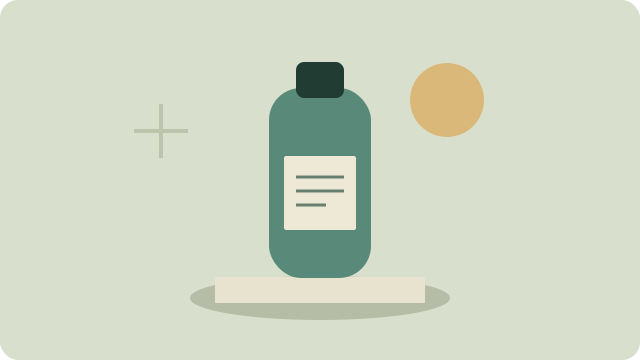
Product scenes and campaign variants
Place your product in a new setting, explore seasonal colors or leave space for ad copy. Supply a product reference and name the shape, label and finish to preserve. Compare each result with the original before using it in a listing.
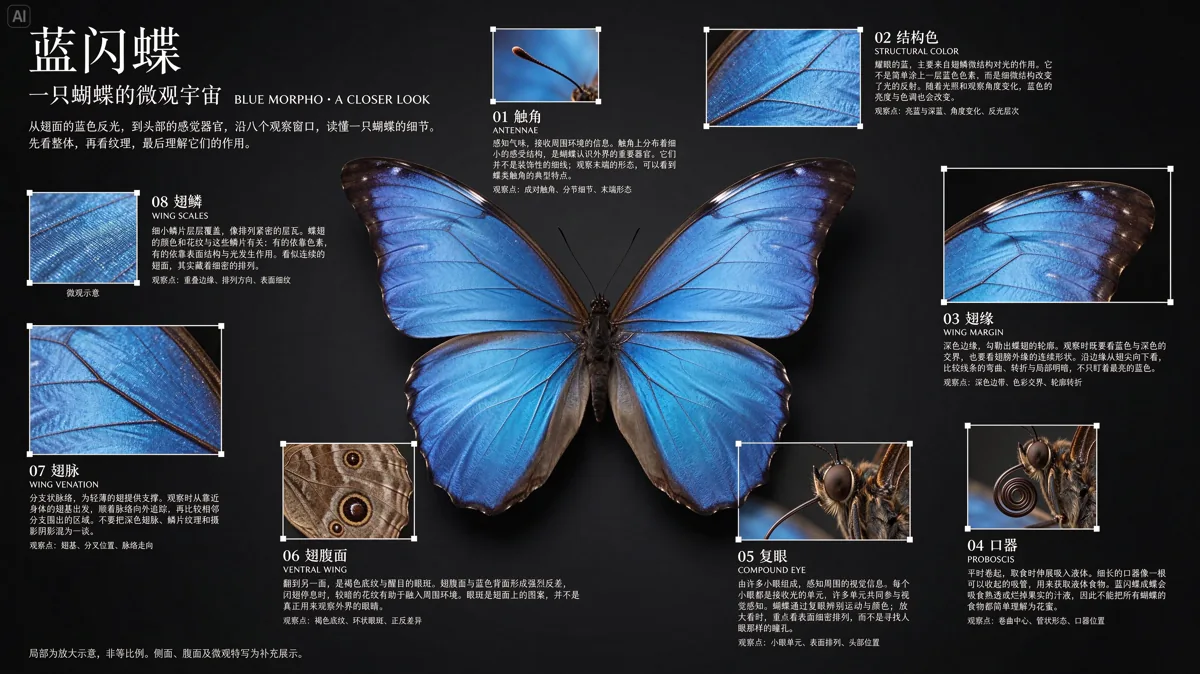
Posters, covers and announcements
Build a composition around a short headline, a subject and a clear reading order. Specify the exact words in quotation marks and leave room for the details you will typeset later. Check every generated letter before publishing.
Transparent assets for a larger design
Create an isolated object, character or decorative element as a transparent PNG. Bring the asset into your own layout for a thumbnail, presentation or campaign. Inspect fine edges and semi-transparent materials against the intended background.
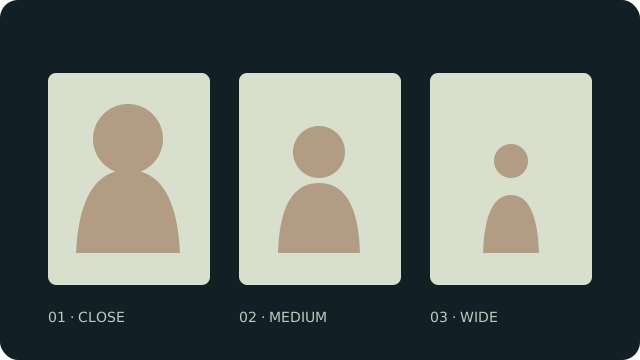
Character sheets and storyboard stills
Use authorized character references to plan a sequence of still images. Describe pose, setting and framing for each shot, and repeat the details that should remain recognizable. These are images; animate a selected still separately if you need video.
FIT FOR THE WORK
Who Is Seedream 5.5 Built For?
E-commerce teams
For turning an existing product photo into several visual directions. Keep the physical product as the reference and inspect whether the generated scene represents it accurately.
Designers and marketing teams
For exploring a poster, campaign concept or reusable cutout before building the final layout. Separate visual exploration from the final typography and brand checks.
Creators and storyboard artists
For planning a visual sequence with a recurring subject. Save the source images and prompts so that each revision has a clear starting point.
COMPARE THE VERSIONS
Seedream 5.5 vs Seedream 5.0 Pro
| Compare | Seedream 5.5 | Seedream 5.0 Pro |
|---|---|---|
| Starting point | Text to Image or Image Edit | Text to Image or Image Edit |
| Output sizes | 1K, 1.5K and 2K | 1K and 2K |
| Reference images | Up to 7 in this editor | Up to 3 in this editor |
| Aspect ratios | 7 selectable ratios | 7 selectable ratios |
| Transparent background | PNG with native transparency | No transparency control in this editor |
| A useful comparison brief | Try a targeted revision or a reusable transparent asset | Use an existing 5.0 Pro brief as the baseline |
Start with the same prompt and source images when comparing results. These are Rendastic’s current controls, not the full capabilities of every provider. The separate Seedream 5.5 Pro edition is still a release preview.
YOUR FIRST IMAGE
How to Use Seedream 5.5
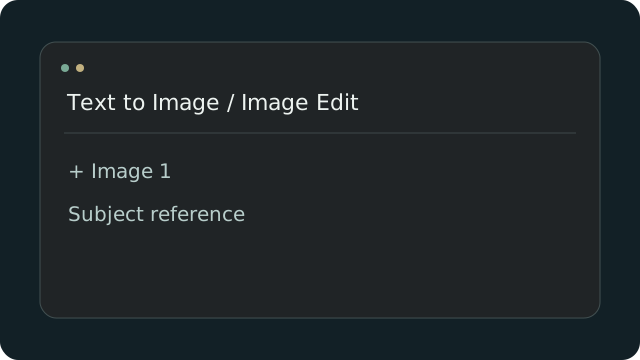
Choose a new image or an edit
Use Text to Image for a written brief. Choose Image Edit when you want to revise an existing image, then add your references. Give each image a role: subject, palette or setting.
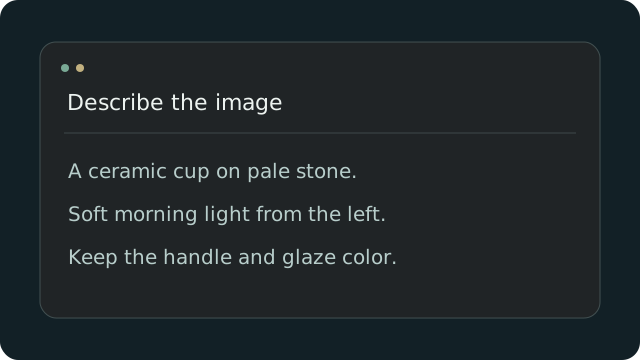
Describe the result and what to preserve
Name the subject, composition, material and light. For an edit, state both the requested change and the details to keep. Put short, exact lettering in quotation marks.
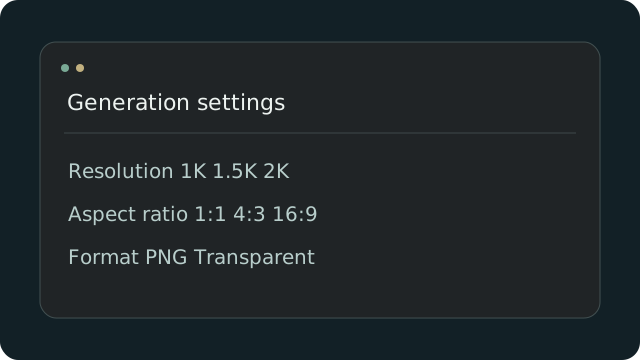
Set the canvas and background
Select an aspect ratio and 1K, 1.5K or 2K. Choose PNG and Transparent background for an asset without a backdrop; use an ordinary background for a complete scene.
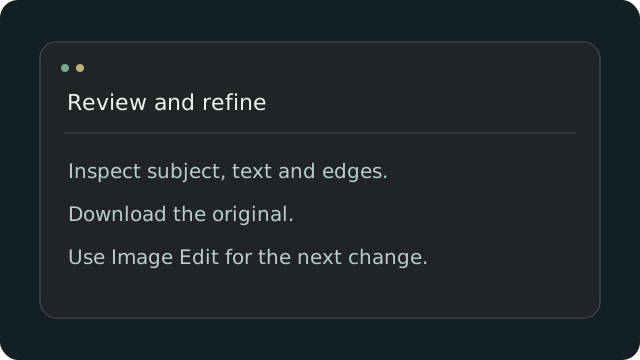
Generate, inspect and refine
Generate once, then inspect the finished image for subject details, lettering and edges. Download the original. For another revision, use that image in Image Edit and describe one deliberate change.
Seedream 5.5 Prompt Starters
Original briefs you can adapt. “Use this prompt” prepares the editor without starting a generation.
A product, a new setting
Use image 1 as the product reference. Place the same ceramic cup on a pale stone table beside a linen napkin, soft morning light from the left. Preserve its handle shape, glaze color and proportions. Leave open space on the right for a headline.
Upload your own product photo. State what must stay the same.
A poster that reads clearly
An editorial poster for a botanical workshop. Headline exactly "GROW SOMETHING" at the top, one large fern illustration in the center, "SATURDAY / 10 AM" below. Warm ivory paper, deep green ink, generous margins and a clear reading order. No other words.
Keep copy short and inspect spelling in the completed image.
A material study
A small translucent amber glass vase on a matte cream plinth. Broad window light, soft shadows, realistic glass thickness, subtle bubbles and restrained highlights. Close product photograph, calm neutral background, no text.
Name material and lighting before adding decorative detail.
Seedream 5.5 FAQ
What is Seedream 5.5?
Seedream 5.5 is ByteDance’s image generation and editing model released on November 9, 2026. The release emphasizes stable successive edits, native transparent assets, more natural textures and clearer small text.
Can I edit an existing image?
Yes. Choose Image Edit and upload references. Explain what to change and what to preserve. This editor accepts up to seven JPG, PNG or WebP images, up to 10 MB each and at most 36 megapixels across the references.
Which sizes are available here?
Choose 1K, 1.5K or 2K and one of seven aspect ratios. Rendastic sends an exact pixel canvas for the selected shape. These are area tiers: for example, 2K square is 2048 × 2048 and 2K landscape 16:9 is 2560 × 1440. There is no 4K option for this model.
Can Seedream 5.5 generate a transparent PNG?
Yes. Choose PNG and enable Transparent background in the image options. JPEG cannot preserve transparency. Check the finished edges and alpha channel before placing the image in another design.
Does this editor split a design into layers?
No. Rendastic currently creates one image per task. Layer decomposition and text recognition from layers are capabilities of the supplier API, but are not controls in this editor.
Is Seedream 5.5 included in the daily free allowance?
No. It uses paid credits. The amount beside Generate includes the selected size and references. Credits are charged after the completed original is saved and accessible; existing model prices and free options are unchanged.
Is Seedream 5.5 Pro the same model?
No. ByteDance has announced that a Pro version of the 5.5 series will follow. Pro is not available in this editor. See our separate Seedream 5.5 Pro release preview for confirmed availability information.
Can I keep refining the same image?
Download the result, choose Image Edit and use it as the reference for another deliberate change. Each confirmed generation is a separate task. Keep your own originals; Rendastic downloads are available for seven days after completion.